Walk Lightly on this PLANET and yet leave such a FOOTPRINT that cannot be erased for thousands of Years..!!!
Visit Codstech for Cyber Security related Posts !

Visitors

Showing posts with label Core java-welcome program. Show all posts

Friday, July 27, 2012

CJ-2 : Welcome Program-Window Application


For a complete list, click JAVA


Refer Introduction to JAVA before going through your first program.

And for theory part , refer "Some Theory Part in JAVA"

=========================================================================
class firstprogram
{
public static void main(String args[ ])
{
System.out.println("Hai...Welcome...");
}
}
=========================================================================
  • Here, firstprogram is the program name.(See, class firstprogram ).The name after declaring the class , is the program name.We have to use the same name , while saving.
  • Also note the capital letters of the words String and System. They are case sensitive.
Instead of typing the program  in NOTEPAD or DOS prompt , here , we are using some softwares like NETBEANS or ECLIPSE etc..
========================================================================= 

(A) : Familier with NETBEANS platform:

Download NetBeans IDE 


Download NetBeans from here for free. (You need JDK or Java Development Kit for installing NetBeans . If you have no Java platform on your system , download from here (which contains JDK+NetBeans ) .


When clicking this , we get  :


We will get a window as shown below :


Click ; File--> New Project.
Then we can see,


Select JAVA from Categories;  and JAVA APPLICATION from Projects.
Click , Next .
Then , another window will appear as : 


Give a project name , and click Finish.
Then we can see the NetBeans IDE for typing the program.It will look like ;
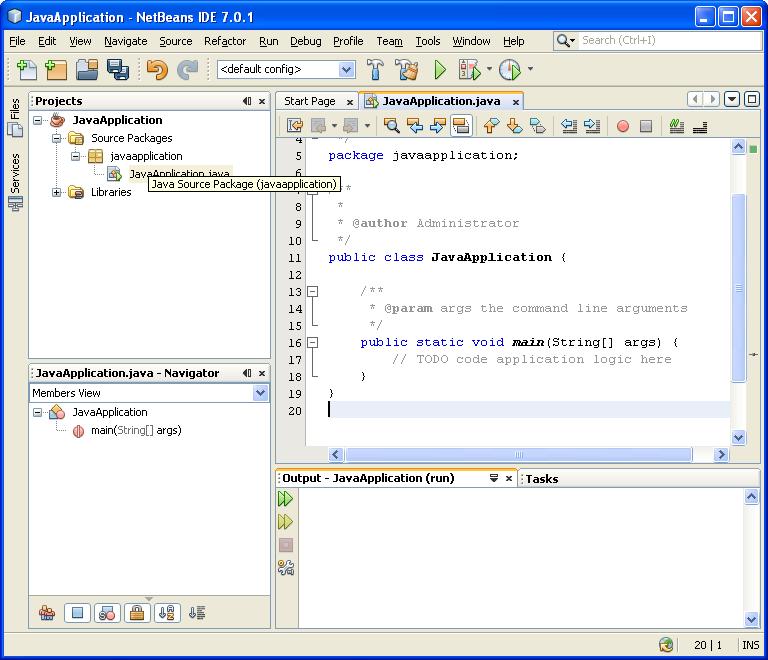


In our program , we need to type the last println statement only.
The sentenses like /**/  does not tken by the Compiler.So, no need to bother about the extra sentenses you see there.
After typing the println statement to display "Hai....Welcome..." , we have to run it.
right click on the page , and select Run the File , from the drop down menu( or , select from the main menu....or , you can use ShiftF6).
The output will displayed in the bottom....as ; 


=========================================================================

(B) : Familier with ECLIPSE platform:

When clicking this , we get  :  


After giving the details as done before , we can see the Eclipse IDE for typing the program.
I just did the programs and you can see the output there.
(It is also more or less same as NETBEANS , so i just skip the steps for taking the Eclipse IDE here....)


Monday, July 23, 2012

CJ-1 : Welcome Program-Consol Application


For a complete list, click JAVA

Refer Introduction to JAVA before going through your first program.

And for theory part , refer "Some Theory Part in JAVA"

=========================================================================
class firstprogram
{
public static void main(String args[ ])
{
System.out.println("Hai...Welcome...");
}
}
=========================================================================
  • Here, firstprogram is the program name.(See, class firstprogram ).The name after declaring the class , is the program name.We have to use the same name , while saving.
  • Also note the capital letters of the words String and System. They are case sensitive.
Type this program in NOTEPAD.


Then , save the program in the same folder , in which the JAVA software is installed.
Here, I installed the JAVA in C disk , jdk 1.3 is the version and bin is the directory.
So , the path is C:\jdk1.3\bin .
(Note the path of the JAVA of your computer.So dont blindly follow the path I described :)


Note the path in above picture.
And it saved as firstprogram.java .

Next, open DOS .


Choose the path in which JAVA is installed..
To do this , follow the steps given.
  1. Type cd\ and press entre . Then we get C:\>
  2. Now choose the directory in which JAVA is installed. Here , my path is jdk 1.3\bin. So, type cd jdk1.3\bin .Then we get , C:\jdk1.3\bin>
  3. Now , compile the program , by typing, javac followed by program name. Here, our program name is firstprogram . Dont forget to put the extension .JAVA  . That is we have to type , javac firstprogram.java
  4. Then Run the program by typing , java followed by program name . That is , java firstprogram.
Then we get the result : Hai...Welcome...
 See the picture below : 


(You can save the JAVA programs in any of the Directory you want , but you havr to give the JAVA installed directory thereafter , using the path command.That is ,

  1. First choose the program directory in DOS prompt.
  2. Then choose the JAVA installed directory , followed by path command.
That is , after giving the location of your program path , type : 
path jdk1.3\bin>

Then compile and run the program.

How to use DOS platform to type\save\edit JAVA:

  1. Type cd\ and press entre . Then we get C:\>
  2. Now choose the directory in which JAVA is installed. Here , my path is jdk 1.3\bin. So, type cd jdk1.3\bin .Then we get , C:\jdk1.3\bin>
  3. Now type , edit followed by the program name.java ( Here, edit firstprogram.java )
Then we can see ;

We can edit the same NOTEPAD program in DOS prompt too...

If we give a new name , then we can type new program in that DOS prompt, then SAVE it in the JAVA directory as told before .

File--> Exit will return to the normal DOS prompt.